






把日志贴给同事,说“看第 2 行”,对方却指向另一处?先检查你生成的是非空行序号,还是文件的物理行号。GNU nl 默认给正文非空行编号,空行保留但不消耗编号;排障引用行号时,这个差别很容易造成错位。
① 在装有 GNU Coreutils 的 Linux 终端执行 `nl --version` 确认实现。先用无需文件的样本:`printf 'alpha\n\nbeta\n' | nl`。应该看到 alpha 标 1,空白行没有编号,beta 标 2;输入其实有三行,工具并没有删掉空行。
② 再运行 `printf 'alpha\n\nbeta\n' | nl -ba`。这次三行分别编号 1、2、3,beta 应标 3。要交付固定格式的引用片段,可用 `printf 'alpha\n\nbeta\n' | nl -ba -w3 -s': '`,检查左侧序号与分隔符,再决定是否保存输出。
③ 结果不一致先核对选项、实现和样本里的换行,不要把终端自动折行当成文件新增一行。真实文本若包含 nl 的逻辑页分隔标记,编号还可能重置;有多文件时也不要默认每个文件从 1 开始。它适合生成可读的排障附件,编号副本不能覆盖源代码或配置。发给别人前,双方对照原文件里那一句文字,再确认行号指向同一处。
参考:gnu.org/s/coreutils/manual/h…
网页里写了结构化数据,某个工具却说没发现,先别再装一遍插件。通用 Schema.org 校验和 Google 富媒体搜索测试检查的范围不同;一个类型合法,并不表示 Google 为它提供对应的富媒体结果,更不保证展示。
① 只选自己有权检查的公开页面,先把 URL 和当前 JSON-LD 保存一份。打开 Schema Markup Validator,使用 URL 模式运行,检查识别到的类型、属性和报错。若抓不到内容,改用代码模式粘贴这一页的完整相关标记,判断是抓取/渲染差异,还是代码本身有问题;不要上传未公开客户资料。
② 再把同一公开 URL 放进 Google Rich Results Test,展开已识别项目,逐个看必填错误和建议项。若某类型没有列出,先查 Google 当前支持的类型,不要因为通用验证器认得它,就认定富媒体测试坏了。若代码测试通过、URL 测试没有,检查实际部署页、脚本渲染及访问限制。
③ 每次只修一个明确错误,在代码模式重测后部署,再用 URL 模式复验。验收看两层:页面实际标记与可见内容一致;适用的测试不再报相关错误。价格、作者、评分不能为过测试而编造。上线后保留测试日期和结果,后续搜索展示单独观察;别把验证成功当成收录、排名或流量承诺。
参考:developers.google.com/search…

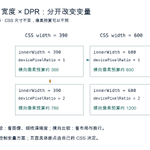
手机预览里把像素密度调高,为什么布局没有跟着变宽?响应式断点主要看 CSS 视口,DPR 是另一项条件。把这两个变量一起改,容易把布局问题误判为高分屏问题。适合验移动页面的开发者和产品同学。
① 用 Firefox 打开自己的无隐私测试页,按 Ctrl+Shift+M;Mac 用 Command+Option+M。进入 Responsive Design Mode,选可编辑尺寸的响应式视口,填 390×844。打开 Web Console 执行 `({w:innerWidth,dpr:devicePixelRatio})`,记录结果;不要在陌生网站控制台粘贴外来脚本。
② 在设备列表的编辑入口新建两台自定义设备,均设 390×844,DPR 分别设 1 和 2,User Agent 留成相同值,触摸选项也保持一致。依次选中并重载同一页,每次重跑查询:w 应保持约 390,dpr 分别为 1、2。再只改宽度到 600,查看菜单、换行和布局断点如何变化。
③ 结果不符先查是否仍选着旧预设、宽度是否被改写、页面是否已重载;别只看设备名称。用两次同宽测试检查图标、细线和响应式图片清晰度,600 宽度测试看布局。结束用同一快捷键退出,并恢复页面缩放。模拟无法覆盖真实手机的浏览器、性能和输入行为;最后还要用目标真机操作一次按钮、输入框与滚动。
参考:firefox-source-docs.mozilla.…

脚本编号从 9 个变成 10 个,旧编号为什么也变了?先检查 seq -w 的宽度规则。
我会继续整理系统修复、AI coding、效率工具和热门项目上线避坑,尽量每条都带命令或流程图。今天给脚本编号做个小验收:GNU seq 的 -w 是按这次序列补齐宽度,不是替你订好一个永远固定的编号规范。
① 适用于装有 GNU Coreutils 的 Linux。先执行 `seq --version`,确认确实是 GNU 实现;macOS 同名命令不要直接套用。运行 `seq -w 1 9`,再运行 `seq -w 1 10`:前者可见 1 到 9,后者会把前面的数补成 01、02……。只是多一项,已有编号的文本形式也变了。
② 如果业务约定三位编号,改用 `LC_ALL=C seq -f '%03g' 1 3`,应得到 001、002、003。再测试 `LC_ALL=C seq -f '%03g' 8 10`,应得到 008、009、010。先只打印,确认后再把结果交给自己的文件命名脚本。
③ 验收清单:起点、终点、跨 9→10 的边界、是否超出 999、有没有与旧编号重名。%03g 的 3 是最小宽度,1000 不会被截成三位;若只允许 001—999,先在业务入口拒绝越界。输出不符先查实现和参数,不要靠改终点“修”格式。这是小整数编号练习,不用于金额精度、大整数计算或生成不可重复的数据库主键。
参考:gnu.org/software/coreutils/m…
数据库工具里有 Rollback 按钮,不等于刚才的 UPDATE 一定能撤销。DBeaver 的 Auto-commit 会自动提交;要练回滚,必须先确认当前编辑器的事务模式。下面只用 PostgreSQL 测试连接里的会话临时表,不碰业务数据。
① 连接你有权限的测试库,新开 SQL 编辑器,确认目标连接。先关闭 Smart commit 和空闲事务自动结束,保持 Auto-commit,逐句执行:`CREATE TEMP TABLE tx_demo(n integer);`、`INSERT INTO tx_demo VALUES (1);`、`SELECT n FROM tx_demo;`。结果应只有一行 1;建表失败先查临时表权限或重名,不要改成业务表试。
② 在这个编辑器工具栏切到 Manual commit,确认指示状态改变。执行 `UPDATE tx_demo SET n=2;`,再执行 SELECT,应看到 2。点击工具栏 Rollback,再执行 SELECT,应回到 1。这验证的是未提交事务内的修改能被撤销。
③ 仍在 Manual commit 时,再 UPDATE 为 2,点击 Commit;随后 Rollback,再 SELECT,值应仍是 2。已经提交的修改不会被这个按钮逆转。若第一轮没有回到 1,先查是否误提交、自动结束了事务或切换了编辑器/连接。
实验后断开测试连接,临时表随会话结束消失。别把这套结论直接套到所有数据库的 DDL;长时间挂着未提交事务也会造成锁与资源问题。正式变更还要有备份、条件限定和影响行数核对。
参考:dbeaver.com/docs/dbeaver/Aut…

翻译的每一句都通顺,导出的粗体、链接却坏了?在 OmegaT 里,文本和格式标签要一起交付。标签检查能找到缺失或错位的标记,但不能代替术语和译意审核,适合翻译开源文档、产品说明的维护者。
① 安装官方 OmegaT,在空目录新建本地项目,源语言选英语、目标选简体中文。准备一份自己的 HTML:`
Open the Settings panel.
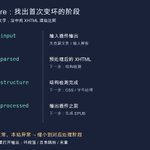
`,存为 UTF-8 的 demo.html;用 Project → Add Files 加入。不要接入团队仓库或自动翻译服务。 ② 进入该句,把普通文字译为中文,同时保留编辑器呈现的标签;标签的显示形式可能不同,照源片段复制,不要凭空猜编号。移动到另一片段或保存,让译文写入项目。打开 Tools → Check Issues;若报告 Tag Issues,双击问题行回到对应片段,按源文修正缺失、顺序或配对,再重新检查。 ③ 直到该样本没有标签问题,执行 Project → Create Translated Files,在项目 target 目录用浏览器打开 demo.html,核对中文句子和 Settings 对应文字的粗体。若没有目标文件,先看标签阻止生成设置和报错,再检查当前项目与目录。验收还要人工确认意思没变;“检查零问题”不能证明翻译准确。保留 source 原件,改译文后需要重新生成,别交付旧的 target 文件。 参考:omegat.sourceforge.io/manual…电子书转换后章节或段落不对,别一口气勾上所有“智能处理”。calibre 会先把输入变为 XHTML,再做结构与样式处理,最后输出;保留中间结果,才能判断问题从哪一步出现。适合整理自己创作或获得授权的文档,不涉及 DRM 绕过。
① 安装官方 calibre,并确认终端能运行 `ebook-convert --version`。在空练习目录放有问题的非加密 input.epub 副本,准备全新的 output.epub 文件名和 debug-out 目录名。先执行 `ebook-convert input.epub output.epub -h`,核对该格式组合可用选项;找不到命令先处理官方安装或 PATH。
② 执行 `ebook-convert input.epub output.epub --debug-pipeline debug-out`。结束后检查转换日志和四个目录:input 是输入插件输出,parsed 是预处理后的 XHTML,structure 是结构检测后,processed 是交给输出插件前。目录没有生成,先看转换是否失败、输出目录能否写入。
③ 找一个具体坏段落,依次在这些目录定位同一句。input 已坏,先查源文件或输入解析;前面正确、后面变坏,就缩小到对应转换阶段。只改一个相关选项,用新目录重跑;最后打开 output.epub,核对该段、目录跳转及末章。不要直接编辑唯一原件;中间 XHTML 也含全文,敏感文档别上传公开工单。
参考:manual.calibre-ebook.com/con…

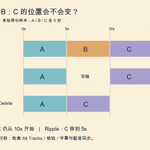
教程视频删掉一句废话,后面的画面、配音却突然错位?先分清两种删除:Lift 拿走片段、保留时间空位;Ripple Delete 拿走片段并让后面的片段补上。它们对时间线的影响不同。
① 用官方 Shotcut 建一个练习项目,先只留一条视频轨。导入一段自己录的约 15 秒视频,拖到时间线;把播放头放到约 5 秒和 10 秒处,各按一次 S 分割成 A、B、C 三段。记录 C 的起点,再另存练习工程,不用真实交付项目。
② 单击中间 B,使用右键菜单 Lift。应看到 B 的位置成为空隙,C 的起点不变。立即用编辑菜单 Undo 撤销,确认三段回到原状;再选 B,执行 Ripple Delete,观察 C 向左补上 B 原来的位置。
③ 两次操作后若结果不符,先检查选中了哪一段、时间线是否获得焦点,以及有没有额外选中片段。先用菜单排除快捷键自定义造成的差异。实验完成撤销或不保存退出,保留原素材。
真正的坑在多轨:Ripple All Tracks、轨道锁定等状态会影响其他轨是否跟着移动。回正式工程前,先在副本上检查删点前后的配音、字幕与口型,再短导出跨过删点的片段验收;单轨实验通过,不代表多轨同步自动正确。
参考:forum.shotcut.org/t/understa…

Mac 缩图先写 --out:一次省略,可能直接改到原件。
这个账号会持续整理系统修复、AI coding、效率工具和热门项目落地避坑,尽量每条都给命令或流程图。先给一个能马上练的小技巧:Mac 自带 sips 可以缩图,但修改命令要明确输出位置,避免直接改到输入文件。
① 在一个空练习目录放一张自己有权使用的 PNG,命名为 input.png,建议长边大于 1600 像素。打开终端进入该目录,先执行 `sips -g pixelWidth -g pixelHeight input.png`,记录宽高;再运行 `shasum -a 256 input.png`,留住原件指纹。不用安装软件,也不用 sudo。
② 确认 preview.png 尚不存在,再执行 `sips -Z 1600 input.png --out preview.png`。这里是让输出长边不超过给定值并保留比例,不是强制变成 1600×1600。随后执行 `sips -g pixelWidth -g pixelHeight preview.png`,并重新计算 input.png 的 SHA-256。
③ 验收清单:原件指纹一致;输出可打开;宽高比例正常;小字、线条在 100% 下仍能读。输出失败先核对当前目录、输入格式及写权限,不要去掉 --out 碰运气。尺寸缩小不保证体积一定满足上传限制,也不能替你清除隐私或核验色彩;需要精确体积控制时,再用图形工具另存副本比较。
桌面突然多出一个空白框,任务栏却找不到对应程序?先定位“哪个进程拥有这个窗口”,比凭名字结束一批进程更有用。适合 Windows 11 用户排查浮窗、弹窗和残留界面;当前官方版本的系统要求要先核对。
① 从微软 Sysinternals 官方页下载并解压 Process Explorer,运行对应架构的程序。先打开记事本,写上 WINDOW-DEMO,不放真实资料。在 Process Explorer 工具栏找到准星形的 Find Window’s Process,按住拖到记事本窗口,再松开。
② 进程列表应选中拥有该窗口的进程。双击该行,查看 Properties → Image,记录 PID、映像路径和命令行,再对不明窗口重复。现代应用可能由宿主进程承载;定位到宿主,并不等于已经确定具体插件或根因。
③ 回到测试记事本,用正常关闭按钮退出,观察对应窗口消失、列表刷新。若准星没定位到目标,先确认拖在实际窗口而非桌面,再查工具与目标的权限差异;必要时由有权限的人复核。路径和签名只是调查线索,不是恶意判定。先保存工作,不要用 Kill Process 作为验证动作,也不要关闭陌生系统进程。
参考:learn.microsoft.com/en-us/sy…

A TeXworks document can request its typesetting tool with a magic comment, but the value has a subtle meaning: it is the tool's name in TeXworks settings, not necessarily the filename of the executable that tool runs. Mixing those up can leave you debugging the wrong setup layer.
Open the Typesetting settings and inspect the tool you intend to use. Note its configured name and executable separately. In a disposable, self-contained TeX file, add `% !TEX program = TOOL_NAME` near the beginning, replacing TOOL_NAME with that configured name exactly. For example, if your tool is named XeLaTeX, use that name rather than assuming the executable label xelatex is interchangeable with it.
Save and reopen the test file, check the selected typesetting tool, and run a minimal document with a distinctive text marker. Inspect the compilation output and reopen the resulting PDF to verify that you are viewing the new build. Selecting a tool does not install its engine or missing packages; resolve an executable-not-found error separately from document syntax errors.
This is useful when projects require different engines on the same workstation. Keep the test document small and record the required tool configuration when sharing it, since another installation may use different names or paths.
A page can contain a canonical tag and still point search engines toward a problematic destination. The useful audit question is what the declared target actually returns and whether its indexing signals agree. Merely finding the tag leaves that relationship unchecked.
For a site you own or are authorized to audit, run a small crawl in Screaming Frog SEO Spider and inspect the Canonicals tab. Start with non-indexable canonical targets and canonical chains. Pick one finding, record the source URL and declared target, then inspect the target's response and directives. A target that redirects elsewhere or declares noindex needs investigation; do not fix it by adding another conflicting tag.
Use a tiny example to reason about the change: page A declares B as canonical, but B redirects to C. Decide which URL should represent the content, then align the declaration with that decision. Verify the relevant pages again after the change. If your site builds tags with JavaScript, confirm what the crawl's rendering configuration actually observes.
This helps developers reviewing CMS templates or duplicate URL variants. Canonical annotations express a preference; they do not force Google's selection or guarantee indexing. Record the implementation evidence separately from later search outcomes, and avoid treating a crawler label as a traffic prediction.

When Rnote draws unpredictably on Linux, record the display-session type before rebuilding your brush settings. The project's current documentation explicitly marks X11 unsupported and warns that stylus and touch input there can be unreliable. That is a useful compatibility clue, not proof that every pen problem has one cause.
From a terminal in the same desktop session, run `printf '%s\n' "$XDG_SESSION_TYPE"`. Treat an empty or unexpected result as something to confirm in your desktop's session information. Do not set this variable to wayland and expect the session to change: printing or changing a label does not switch the display server.
Save your work, note the Rnote version and installation method, and make a small test page with ordinary strokes, pressure changes, and a brief pan gesture. If your desktop offers a supported Wayland session, save other applications before logging out, select that session normally, and repeat the same test. Keep the tablet and drawing settings unchanged for the comparison.
If behavior still fails, preserve the small reproduction and report which interactions break. Pen buttons, touch gestures, and pressure are separate observations. This suits Linux tablet users and maintainers preparing a useful bug report; switching sessions is a diagnostic comparison, not a promise that the hardware will work.
A filename can pass a portability check even when no file exists at that path. GNU pathchk checks naming constraints; it is useful before generating a bundle of files, but its success is not evidence that an expected artifact was produced.
With GNU Coreutils installed, try `pathchk --portability -- report.txt` and inspect the exit status immediately afterward with `echo $?`. The name does not need to exist. Compare it with `pathchk --portability -- 'draft notes.txt'`: the space is outside the POSIX portable filename character set. Then try `pathchk --portability -- ./-draft.txt`; a component beginning with a hyphen is also rejected by this combined portability mode. These checks inspect names without creating files.
Use the result to catch naming problems early in a script that prepares public examples or cross-machine test fixtures. Check existence, file type, and actual read/write operations separately when those properties matter. A successful preflight cannot reserve a path or prevent another process from changing the filesystem afterward.
The boundary is deliberately conservative: portable POSIX naming is not a complete Windows filename policy, and a rejected name may still work on your current machine. Decide what compatibility you need before enforcing this as a delivery gate.
In Helix, selecting matches with `s` operates inside the current selections. It does not automatically mean every matching word in the file. That scope is useful, but it can make a bulk edit appear to miss occurrences when you started from a small selection.
Use a disposable file containing `red blue red` on one line and `red green` on another. With default bindings, press Escape for Normal mode, then `%` to select the entire buffer. Press `s`, enter `red`, and press Enter. Inspect the highlighted matches before changing anything. You should have three matching selections in this fixture. Press `c`, type `amber`, then Escape. All three selected matches should change while blue and green remain intact.
Undo with `u` and repeat the experiment after selecting only one line. The smaller result demonstrates the scope rule. It also gives you a controlled way to change only one section of a larger document. Custom keymaps and terminal shortcuts can change which keystrokes reach the editor, so consult the installed version's help if the sequence behaves differently.
This suits deliberate text transformations where you want to inspect targets first. A regex match is still textual: it cannot establish that an identifier is the same program symbol across a codebase.

A short directory keyword can match more than one project. With zoxide, that ambiguity is worth inspecting before you run a command that assumes the current directory is correct. Its database remembers visited locations; a familiar keyword is not a unique project identifier.
Once zoxide is installed, run `zoxide query --list work` to list remembered paths matching work. Replace that keyword with one from your own directory names. The list operation prints candidates without changing your shell's current directory. For a single best match, use `zoxide query work`. Add a second keyword when one word is too broad. If you use interactive selection, `zoxide query --interactive work` requires fzf.
After choosing a destination, use your configured shell integration to jump there, then run `pwd` before any build, cleanup, or deployment step. If the result surprises you, return to the candidate list. Check whether the intended directory has actually entered the database instead of repeatedly guessing shorter keywords. Installing the binary and enabling shell integration are separate setup steps documented for each shell.
This is especially helpful when several checkouts share names like app, docs, or work. Keep convenience jumps for navigation, and use explicit, verified paths in automation where a different working directory would change the operation's target.
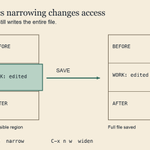
If an Emacs buffer suddenly looks much shorter, check whether it is narrowed before assuming text disappeared. Narrowing makes only part of the buffer accessible for ordinary editing. Saving still writes the inaccessible text too, which matters when you think you are exporting only the visible excerpt.
Try it in a disposable text file with three sections: BEFORE, WORK, and AFTER. Select the WORK section by setting a mark at one end and moving to the other. Press `C-x n n` to narrow to that region. In Emacs notation, C means Control. The command may ask for confirmation because narrow-to-region is normally disabled as a beginner safeguard. Read that prompt rather than enabling it globally by habit.
Edit a word in WORK and save the practice file. Then press `C-x n w` to widen. BEFORE and AFTER should reappear, alongside your edit. Reopen the saved file to confirm that all three sections were retained. The mode line's Narrow indicator is another useful clue while the restriction is active.
This helps when focusing on one function or paragraph, and when limiting a repetitive editing operation. It is not a way to remove confidential sections from a deliverable. For an excerpt, create a separate output and inspect its complete contents.

A time-tracking dashboard can show a convincing daily total while collecting a different kind of evidence than you expected. ActivityWatch separates collection into watchers. Its window watcher observes the active application and window title, while its AFK watcher detects inactivity. Neither is a direct measurement of useful work.
For an initial check, use your own computer and a harmless test document with an obvious title. Run ActivityWatch, alternate between two applications, then leave the computer idle long enough to cross your configured AFK threshold. Open the local web interface and its Raw Data page. Inspect the relevant watcher buckets and recent events before interpreting the summary chart. Compare the application names, timestamps, and inactivity transition with what you deliberately did.
If a chart looks empty, establish whether the corresponding watcher produced events at all. Missing collection and unexpected categorization are different problems. On Linux, also check the watcher's documented display-session compatibility rather than assuming every desktop setup behaves identically.
Treat raw exports as sensitive: window titles and collected browsing details can reveal private work. Keep this experiment local and use invented document names. This suits personal workflow experiments; activity duration should remain a clue for reflection, not a score for someone's productivity.
A symbol that looks correct in Character Map can still render differently after you paste it into a document. Character Map lets you inspect characters available in a selected font. The receiving application also has its own font and rendering behavior, so the preview alone is an incomplete delivery test.
On Windows, search Start for Character Map and open it. Choose a font you actually intend to use. Select a character, click Select, then Copy, and paste it into a disposable document. Start with something recognizable, such as a degree sign, rather than a symbol you cannot identify by sight. Record the character's Unicode identifier when available so you can distinguish the intended character from a similar-looking substitute.
Now check the destination's selected font, change it deliberately, and compare the result. If the document will be shared, export a small sample through the actual delivery format and reopen it. A successful paste confirms insertion; it does not establish that another person's application has the same font resources.
This is useful for technical instructions, measurement labels, and support documents. Prefer standard characters with clear meaning. Avoid building critical instructions around an unexplained font-specific icon, and keep the original wording readable if that icon fails to display.

A field extraction can look successful while quietly copying an entire malformed line into the result. With GNU cut, lines that contain no field delimiter are printed unchanged unless you request otherwise. Asking for field two does not automatically reject a line with no fields to split.
Try this disposable example in a shell: `printf 'alpha:10\nbroken\nbeta:20\n' | cut -d: -f2`. The output includes `broken` between the two numbers. Repeat with `cut -s -d: -f2`; now the delimiter-free line is suppressed. The `-s` option means only delimited lines, which is useful when separating structured records from unrelated messages in a small text report.
The important limit: suppression is not validation. A record such as `alpha:ten` still passes this delimiter test. A record with an unexpected extra delimiter can also produce a plausible field. Count rejected records separately if losing them would matter, and validate the resulting values before calculations. Do not use this recipe as a CSV parser: quoted separators need a format-aware reader.
For a quick acceptance check, add one missing-delimiter record and one nonnumeric value to a tiny fixture. Confirm which survives each stage before applying the extraction to your real report.
