

Microsoft MVP | SharePoint and Microsoft 365 tutorials from a consultant who builds this stuff for a living.
Boston, MA
Joined March 2009
- Tweets15.6K
- Following166
- Followers2.3K
- Likes11.3K
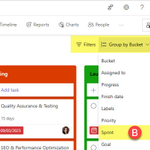






If you’ve been using buckets to simulate sprints in Planner, there’s a built-in way to do it now.
Sprints are part of Planner Premium, the version that needs additional licenses. To get to them, open your plan, click Board, then Group by Bucket, then choose Sprint.
Every task starts in the Backlog, which is the default bucket for anything not assigned to a sprint. From there you create a bucket for each sprint, name it, and set its start and end dates. Then you drag tasks from the Backlog into a sprint, or open a task and change its sprint right on the card. Past that, the Sprint view works like the regular Board.
One thing to know before you plan around it. Sprint buckets don’t control scheduling. Putting a task in a sprint doesn’t change its start or due dates, and the Timeline (Gantt) view ignores sprint boundaries and follows your task dependencies instead.
See more here: sharepointmaven.com/how-spri…
#SharePoint #Microsoft365

Someone on your next Teams call may not be getting what you’re saying. 😐
Maybe English is their second language. Maybe they follow better when they can read along. Live captions solve both, and it takes four clicks:
☑️ Click the 3 dots (More)
☑️ Choose Language and speech
☑️ Select Show live captions
☑️ Click the gear, open Language settings, set the spoken language, then pick a translation
With translation on, you can keep presenting in English while attendees read the captions in Spanish or another language. No interpreter needed.
Two tips: set the spoken language first, because the captions are built from it. Then test the setup before the session starts.
See here: sharepointmaven.com/how-to-e…
#SharePoint #Microsoft365

Is your SharePoint People web part showing emails for some people and not others?
It pulls from Entra ID and only shows an email when the Title is blank. Here’s how to add one to every card:
🔹 Click Edit on the page
🔹 Switch the layout to Medium Card
🔹 Click + Add a profile link
🔹 Enter a mailto: email address
Each card now shows a clickable email under the name and title.
See more here: sharepointmaven.com/how-to-a…
#SharePoint #Microsoft365
When you need to understand who reports to whom, or find where someone fits in your organization, Org Explorer gives you a visual way to explore that structure from Outlook or Teams.
It uses employee and reporting information from Microsoft Entra ID, and it may be a useful option for organizations looking for an employee directory or a replacement for Delve.
In Outlook, open Org Explorer from its icon in the app bar. In Teams, find and open the Org Explorer app. The two interfaces are almost identical, though the search box appears in a different location.
Org Explorer's layout can't be customized, and the information it displays comes from Entra ID. To update your own profile, open your profile card, select "View profile," and then choose "Update your profile."
See how Org Explorer works in Outlook and Teams: sharepointmaven.com/org-expl…
#SharePoint #Microsoft365

Gregory Zelfond retweeted

Announcing Today - a team knowledge base, curated by Copilot and agents - powered by SharePoint!
Finally, the tech is here to build a feature I've dreamed of for a long time! Excited to see early adopter feedback.
techcommunity.microsoft.com/…

In this episode, I walk through the 8 core pillars of a successful SharePoint information architecture – flat architecture, site types, the number of sites and libraries, metadata versus folders, hub sites, search and Copilot, and security.
I explain why each decision matters and what happens when you get it wrong.
Listen here: sharepointmaven.com/podcast/…
#SharePoint #Microsoft365
Need an easy way for employees to browse and download marketing flyers? You can build a dedicated Marketing Flyers page in SharePoint using a document library and a few simple settings.
Start by creating a document library and organizing the PDF flyers into folders, such as Brand Flyers, Promotion Flyers, and Event Flyers.
Then create a Gallery view and adjust the card settings so the files are easier to browse. Create a SharePoint page, add the Document Library web part, and choose the Gallery view. To show one category at a time, set the web part to display a specific folder.
You can add another web part for each category, or duplicate the section and change the folder it displays. Republish the page when your changes are ready.
The result is a visual, organized place where employees can find the flyer they need and download it.
See the steps and examples: sharepointmaven.com/how-to-c…
#SharePoint #Microsoft365

SharePoint navigation links can be translated so people see them in their preferred language. The same process works for both site navigation and hub navigation.
Start by enabling multiple languages on your site and adding the alternate languages you need. Then select Edit Navigation, open the three dot menu beside each link or label, and choose Translations. Enter the translation for each enabled language, select OK, confirm your changes, and save the navigation.
Once saved, the translated link or label appears according to the language set in the signed in user's account.
Read more here: sharepointmaven.com/how-to-e…
#SharePoint #Microsoft365

Microsoft Loop is designed for people to create and edit content together, but sometimes you may want someone to view a page or component without making changes. You can give a person read only access to either one, even if they aren’t a member of the Loop workspace.
To share a page, open it and select Share > Page link. The link starts with edit access, so open Settings, choose who can use it, and change Can edit to Can view before applying the change and sharing the link.
To share a component, select Copy component, open the link settings, choose who can access it, and change Can edit to Can view. A read only component link also works when pasted into Teams or Outlook.
There are a few limits to keep in mind: you can’t set read only access for an entire Loop workspace, since workspace roles are Owner and Editor. People who receive read only access also can’t share the page or component with others.
This blog post describes possible uses such as sharing a meeting agenda, project status report, project closure report, or knowledge base page.
See more here: sharepointmaven.com/how-to-g…
#SharePoint #Microsoft365

In this episode, I explain the six security groups you see in the SharePoint Admin Center: Site Visitors, Site Members, Site Owners, Site Collection Admins, Group Members, and Group Owners.
I cover which ones show up on which type of site, and which ones you should actually be using to manage access.
Listen here: sharepointmaven.com/podcast/…
#SharePoint #Microsoft365
Want a simpler way to keep up with SharePoint?
From legal and healthcare to education, nonprofits, and beyond, I bring my SharePoint experience across more than a dozen industries.
Sign up to get ideas you can put to work in your own organization: sharepointmaven.com/newslett…
#SharePoint #Microsoft365

Teams can create custom meeting summaries and notes based on instructions you provide, so you can organize the recap around the details that matter to you.
To create one, turn on recording and transcription during the meeting. After it ends, open the meeting from the Chat section, select View recap, then choose Custom summary and Create template.
Add instructions for the summary you want, such as templates for different types of client calls. Once Teams generates the summary, copy it into Word, OneNote, Loop, or the tool you use to keep meeting notes.
You can edit your templates later by selecting the three dots and choosing Edit. Teams stores the templates in the Recordings folder in your OneDrive.
Read the full post: sharepointmaven.com/teams-cu…
#SharePoint #Microsoft365

Turning off external sharing in SharePoint can lead employees to share files in other ways, such as email attachments or personal cloud storage.
Instead, you can limit who can share and how sharing works with these six options:
🔹 Enable or disable external sharing site by site
🔹 Block or allow sharing with specific email domains
🔹 Limit external sharing to a designated security group
🔹 Set default sharing links and permissions to View or Edit
🔹 Set expiration dates for external sharing links
🔹 Train users to share the right files and folders
Read the full post to see how each option can help manage external sharing in SharePoint: sharepointmaven.com/6-altern…
#SharePoint #Microsoft365

Need to rearrange the rows in a SharePoint List?
You can now select one or more rows, grab the two vertical lines, and drag them into the order you want.
If the option isn’t showing, check whether the view is sorted by a column. Change the Sort by setting to None, save the view, and the drag handles should reappear.
Learn more here: sharepointmaven.com/how-to-q…
#SharePoint #Microsoft365
In this episode, I explain what the Site Assets Library in SharePoint really is and walk through the 15 types of content that quietly end up in it – from logos and header images to page images, videos, and web part backgrounds.
I also cover why old assets stick around and why you should never delete this library.
Listen here: sharepointmaven.com/podcast/…
#SharePoint #Microsoft365
Email addresses in SharePoint Lists don't have to sit there as plain text.
You can make them clickable so users can select an email address and open their default email client without copying and pasting. Here's how:
🔹 Add a Hyperlink column to your SharePoint List. A Text column won't work for this.
🔹 In the URL field, add the mailto: prefix before the email address. For example: mailto:[email protected]
🔹 In the Text to display field, enter only the email address.
Once saved, clicking the address will open your default email client with the address already added to the To field.
This also works in the Hero, Editorial, Call to Action, Quick Links, and In Line Text URL web parts.
Read the full blog post here: sharepointmaven.com/how-to-m…
#SharePoint #Microsoft365

Creating a SharePoint page can take time, especially when you're starting with a blank page and trying to decide how the content should be organized.
The SharePoint Page Agent can help with that process.
The agent is built into Microsoft 365 and uses your instructions to create a SharePoint page based on your content requirements. It guides you from defining the page requirements to creating a draft on an existing SharePoint site.
To use it:
✔ Go to the Microsoft 365 homepage and select the Copilot icon.
✔ Choose All Agents, then search for SharePoint Page Agent if it doesn't appear in the list.
✔ Enter your page requirements in the chat box. The more specific your instructions are, the better the result will be.
✔ Review the suggested page draft and make changes through additional prompts.
✔ When you're ready, select the option to choose a SharePoint site for the draft.
✔ Confirm your selection, choose the site, and confirm again.
✔ The agent will create the page on the selected SharePoint site.
✔ Afterward, you can continue making changes with the site's built in agent.
There are a few important things to know before using it.
You need a Copilot license, and you must already have a SharePoint site available. The agent won't create a new site for you.
The page is created as a private draft the first time, so you'll need to review and publish it when you're ready.
I also found that the best results came from creating a separate document with detailed instructions and uploading it with the prompt, rather than placing a large amount of text directly into the chat.
At the moment, the SharePoint Page Agent is better at organizing and placing text than creating a fully designed page. It may copy your content into the page, but it doesn't reliably add web parts such as News, Events, or Quick Links. Follow up prompts may help, although the results can vary.
For that reason, you may still prefer to open the SharePoint site directly and use its built in agent to create or edit the page.
The SharePoint Page Agent still has plenty of potential, particularly for anyone whose page design skills are closer to age five than age thirty-five.
Read the full article here: sharepointmaven.com/how-to-b…
#SharePoint #Microsoft365

Quick Steps in SharePoint can save time by turning a repeated task into a single action.
Now, Quick Steps can also include a condition, which means the action will appear only when the selected item meets a specific requirement.
For example, imagine a policy library containing documents from several departments. Finance policies need to be reviewed by the CFO, but other policies don't require that step.
You can create a conditional Quick Step that sends an email to the CFO, but only displays for documents tagged as Finance.
To create one:
Open the SharePoint list or library.
Select Automate, choose Automate again, and then select Create a quick step.
Choose the action you want the Quick Step to perform. In the example from the article, the action is Draft an email.
Complete the details for the Quick Step, including the recipient and message.
At the bottom of the form, change Always show this quick step to Only show this quick step if.
Select the condition that controls when the Quick Step appears, then select Create.
After it has been created, the Quick Step will only appear when the condition is met. In the example, it appears for files tagged with Finance, and selecting it creates an email for the CFO to review the policy.
Conditional Quick Steps can be used in both SharePoint lists and libraries, and they can support processes such as:
• Moving a document when it reaches a certain status
• Moving or copying an approved policy to another site
• Sending a Teams message when an item's status changes
• Marking a checklist item as completed when it is in progress
There are a few limitations to keep in mind:
• Each Quick Step can have only one condition.
• The Quick Step won't appear in the menu when the condition isn't met.
• Conditions are available for both lists and libraries.
This gives you a simple way to make actions more relevant to the item someone is working with, while keeping unrelated options out of the menu.
Read the full article here: sharepointmaven.com/how-to-c…
#SharePoint #Microsoft365

Typing the same Copilot instructions over and over can get exhausting, especially when a process includes several details and conditions.
SharePoint Skills let you save those instructions as reusable instructions for a business process.
To create one:
✔ Enable the Agent Assets document library on your SharePoint site. This only needs to be done once.
✔ Decide what the Skill should do, then write specific instructions for Copilot. For example, you could ask it to create a Skill called New Project Setup that asks for the project name and client, creates a folder named Client and Project Name in the Projects library, and adds subfolders for Contracts, Deliverables, and Meeting Notes.
✔ Create the Skill by entering those instructions in a Copilot chat. You can also upload a Markdown file with the instructions, although creating it through chat is the simpler approach.
✔ Find the Skill in the Agent Assets document library. Copilot saves each Skill as a Markdown file with an .md extension.
When you need to use it, type a request such as “Set up a new project.” Copilot will match your request to the available Skill and run the saved instructions.
See more here: sharepointmaven.com/how-to-c…

In this episode, I walk through the top five mistakes I see users make in SharePoint – from dumping everything into one library and syncing too much, to wrong permissions, the wrong site types, and skipping user training – and I share how to avoid each one.
Listen here: sharepointmaven.com/podcast/…
#SharePoint #Microsoft365